Bring key details forward
Drag column headers into the order that suits you. Keep the details you check most—such as ETA, status or carrier—towards the front.

PREPARED FOR SUPER RETAIL GROUP
Give every store the visibility to know what’s coming, what’s arrived and what needs attention.
Cario’s Dealers Portal brings incoming freight from multiple carriers and senders into one simple dashboard. Less chasing. Fewer tabs. More time for your customers.
Built for stores, warehouses and business units.
Answer with confidenceCheck the latest freight information yourself.
Prepare your teamUse ETAs and item details to plan receiving.
Focus your follow-upFind exceptions before they become a chase.
A CLEARER DAY STARTS HERE
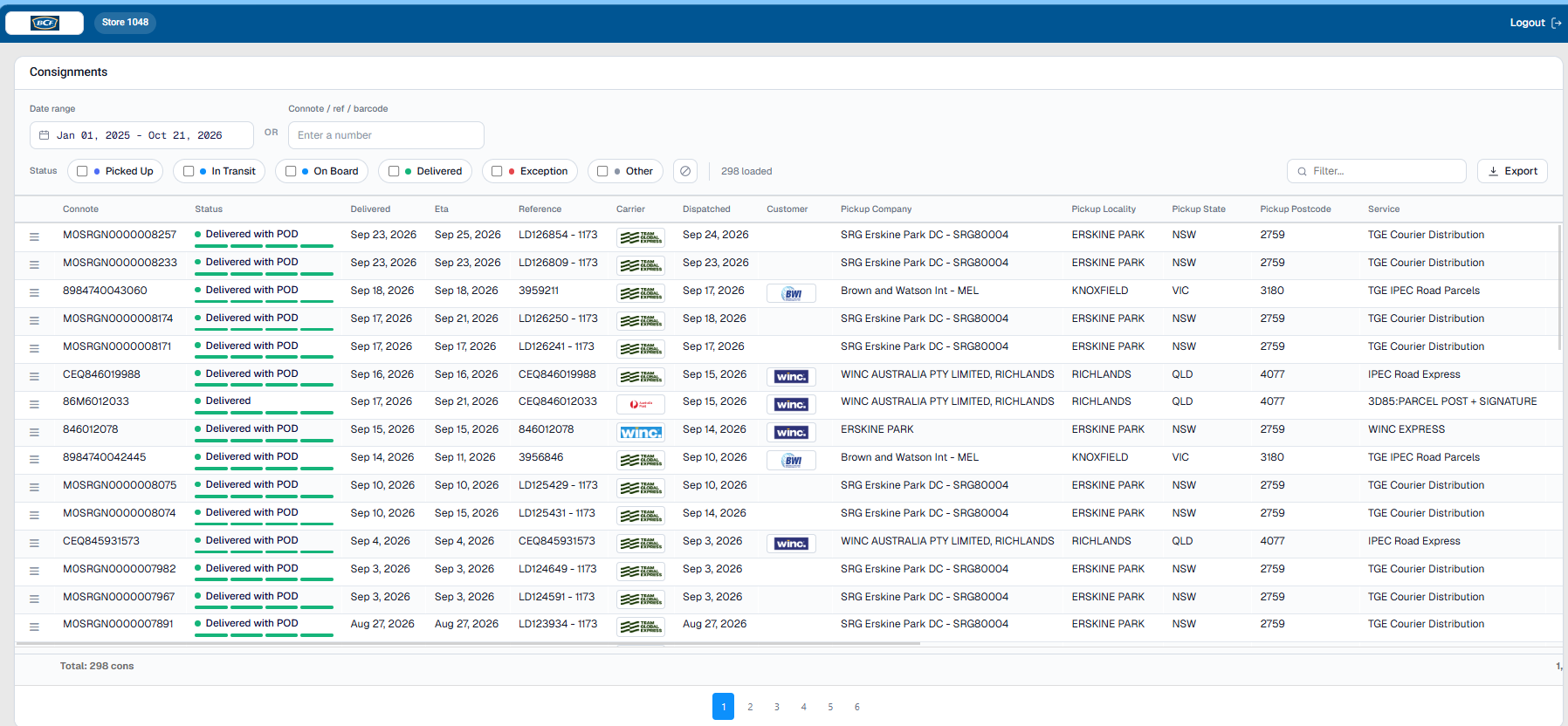
See incoming consignments across carriers and sending businesses. Find the delivery you need, understand its progress and open the details without jumping between tracking websites.
Choose a date span for today’s receiving, a week or month of activity, or a review across years of available records. Your view can be as focused or as broad as the task needs.
01 / ACCESS FOR EVERY LOCATION
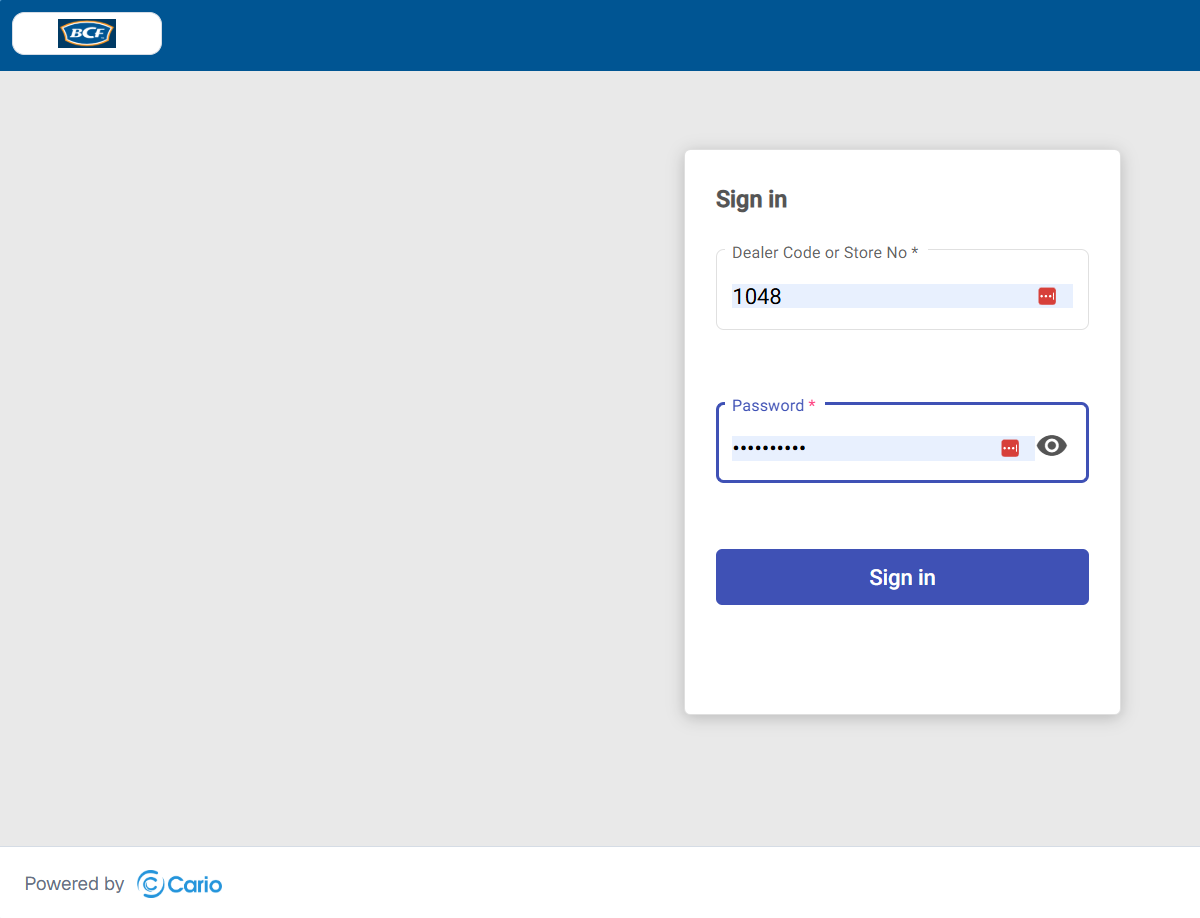
Cario can create a dedicated receiver portal for each SRG store, warehouse or business unit, giving the team a view of freight coming to their location.
Use the portal link provided for your location.
The example shown uses Store 1048.
Use your assigned password to open the dashboard.
The benefit: store teams can answer routine delivery questions directly, reducing calls and emails to other teams.
02 / FIND WHAT MATTERS
Start with a date range, or search directly by connote, barcode or reference. Then narrow the results by status, carrier or sending business to match the question you’re answering.
EXAMPLE · FOLLOWMONT
Type “followmont” in the Filter field to narrow the loaded results to matching freight. See the consignments you want without opening another carrier website.
You’re checking incoming freight with a particular carrier or preparing a targeted follow-up.
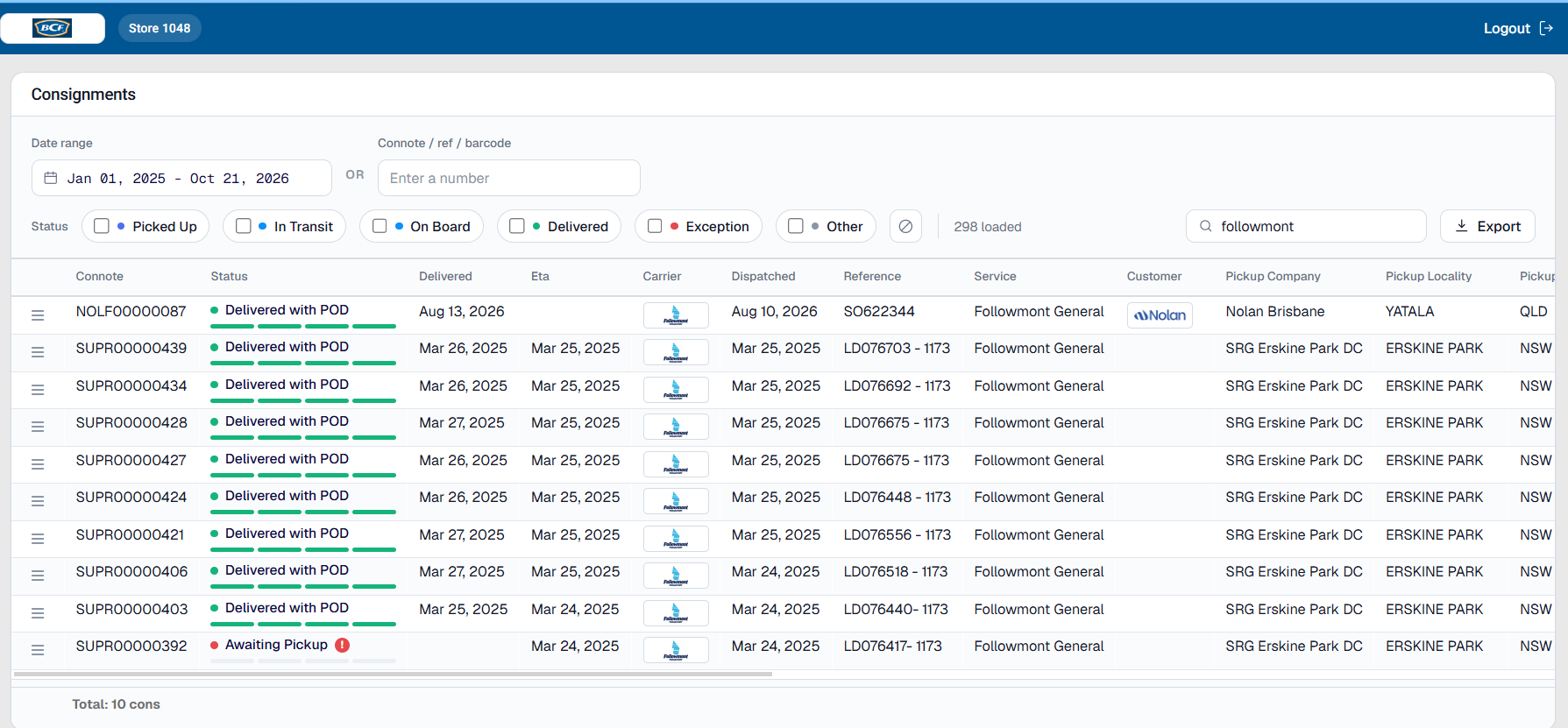
Use Connote / ref / barcode to search by the identifier you have. Use the separate Filter field to refine the loaded list by text such as Followmont, Nolan or Winc.
03 / KNOW WHERE TO FOCUS
Select the Exception status filter to bring consignments needing attention into view. Hover over a status or alert indicator to see more context about what is happening with the freight.
In the example, the tooltip adds the freight stage, ETA and an overdue flag. That context helps your team decide what to monitor and what to follow up.
The benefit: spend your effort on the deliveries that need it, with the consignment details ready for a more useful conversation.
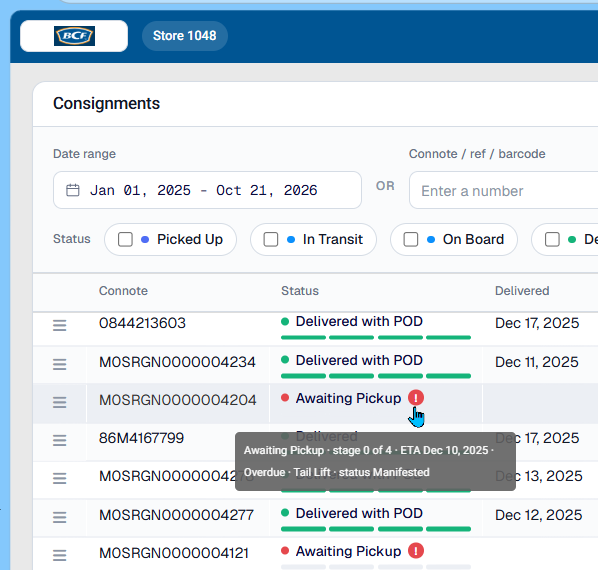
More than a status label.A quick hover gives your team the next layer of detail.
04 / GO BEYOND THE TRACKING LINE
Open a consignment to check the information behind its status. Move between proof of delivery, shipping units and event milestones to answer the next question.
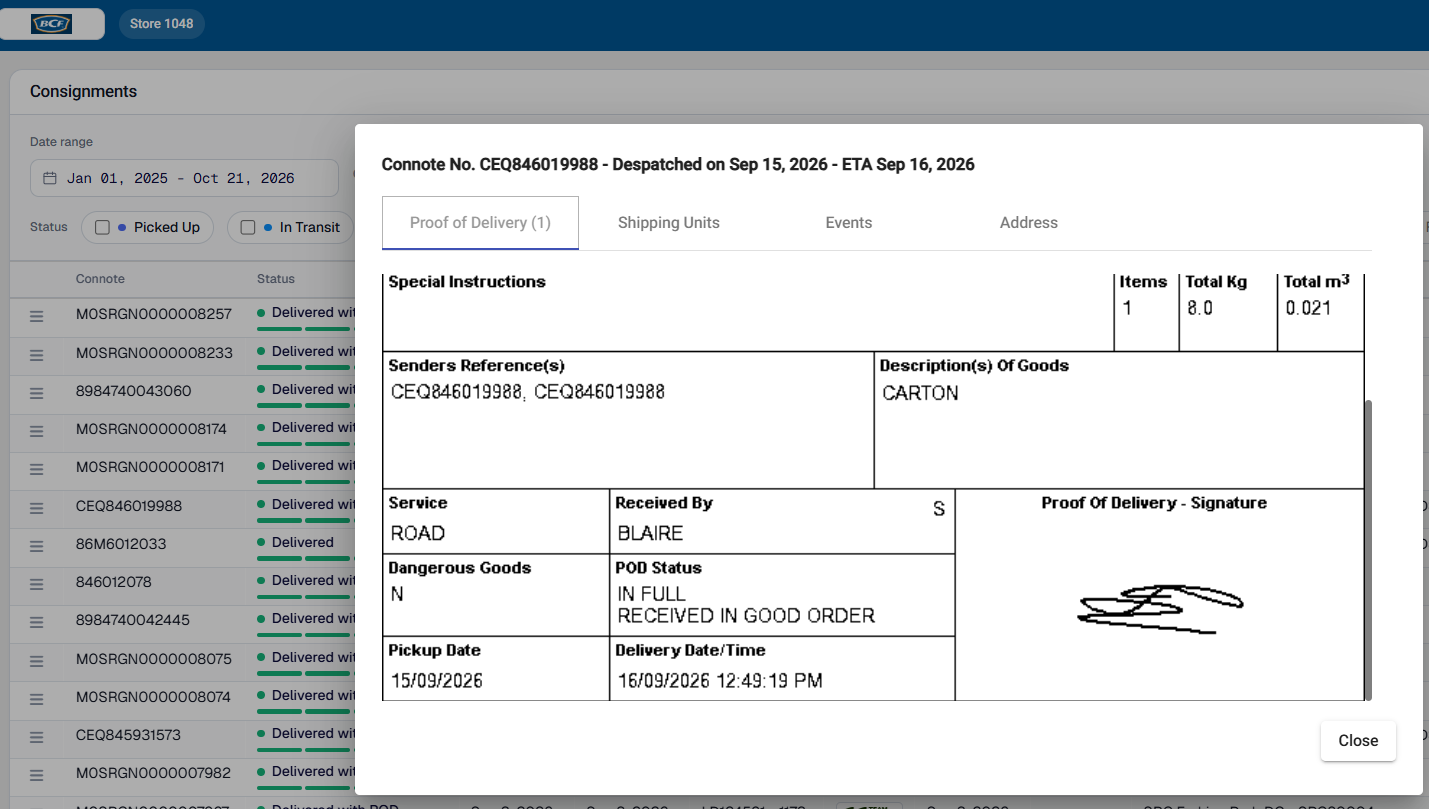
ETAs, tracking events and PODs reflect the information supplied to Cario. A delivered status may appear before a POD is available.
05 / MAKE THE VIEW WORK FOR YOU
Set up the dashboard around the way your team works, then take the data into your operational workflows.
Drag column headers into the order that suits you. Keep the details you check most—such as ETA, status or carrier—towards the front.
Click a column header to sort. Sort by item count to identify larger consignments and help your team prepare for receiving.
Use Export to download a CSV for reporting, operational checks or import into your own spreadsheets and integration workflows.
SEE THE PORTAL IN ACTION
A quick walkthrough of the dashboard, delivery documents, shipment detail and search. The video uses a Supercheap Auto example; the guide above uses BCF Store 1048.
The video opens on a store’s consignment dashboard. A consignment opens to reveal event milestones, proof of delivery, shipping units and address details. The walkthrough returns to the dashboard and uses a consignment reference to find a matching record.
A SIMPLE ROUTINE FOR EVERY STORE
Make the portal part of the receiving routine, so the whole team can work from the same freight information.
Sign in, choose your date range and check incoming consignments and ETAs.
Filter for On Board or Exception, then inspect the status context and details.
Check delivered freight and view the POD when you need evidence of receipt.
READY FOR YOUR LOCATIONS
Cario can set up a receiver portal for each of your stores, warehouses and business units. Speak with your Cario team to organise location access and get your teams started.
✓ One dashboard across carriers and senders
✓ Fewer routine freight status enquiries
✓ Better preparation for incoming deliveries
✓ Clearer, more focused follow-up
Revisit the portal tour